How to Enable and Use Check-In Messages

So last week I wrote about putting your phone into a self-destruct mode. Nuking your device a great safeguard: in the event of an emergency, your phone’s biometrics can’t be used against you, and repeated attempts to break into the phone destroys its data.
But what if I want my phone to automatically generate a series of connecting messages to a loved one that says, "I made it home," or "I'm here?” It sounds obnoxious but it isn't really about sharing our lunch decisions. It’s courteous, right? Letting know where you are they can stop worrying lifts weights from shoulders, but it can also be a trigger for others to take action.
This is the Feature You’re Looking For
The Apple iPhone has a native feature called Check In.
Imagine you're driving home after a late volunteer meeting, returning from an activist event, walking back to your car after an evening class, or heading to an appointment that makes you a little uneasy. Before you leave, you open a conversation with someone you trust and start a Check In. You tell your iPhone roughly when you expect to arrive.
If everything goes as planned, your friend automatically receives a message letting them know you've arrived safely.
If you don't arrive and you don't respond when your phone prompts you, the iPhone will automatically share your location and other helpful information with that trusted person.
You don't have to remember to send another text while you're juggling groceries, chasing kids, or simply exhausted after a long day.
Using Check Ins is Easy on an iPhone
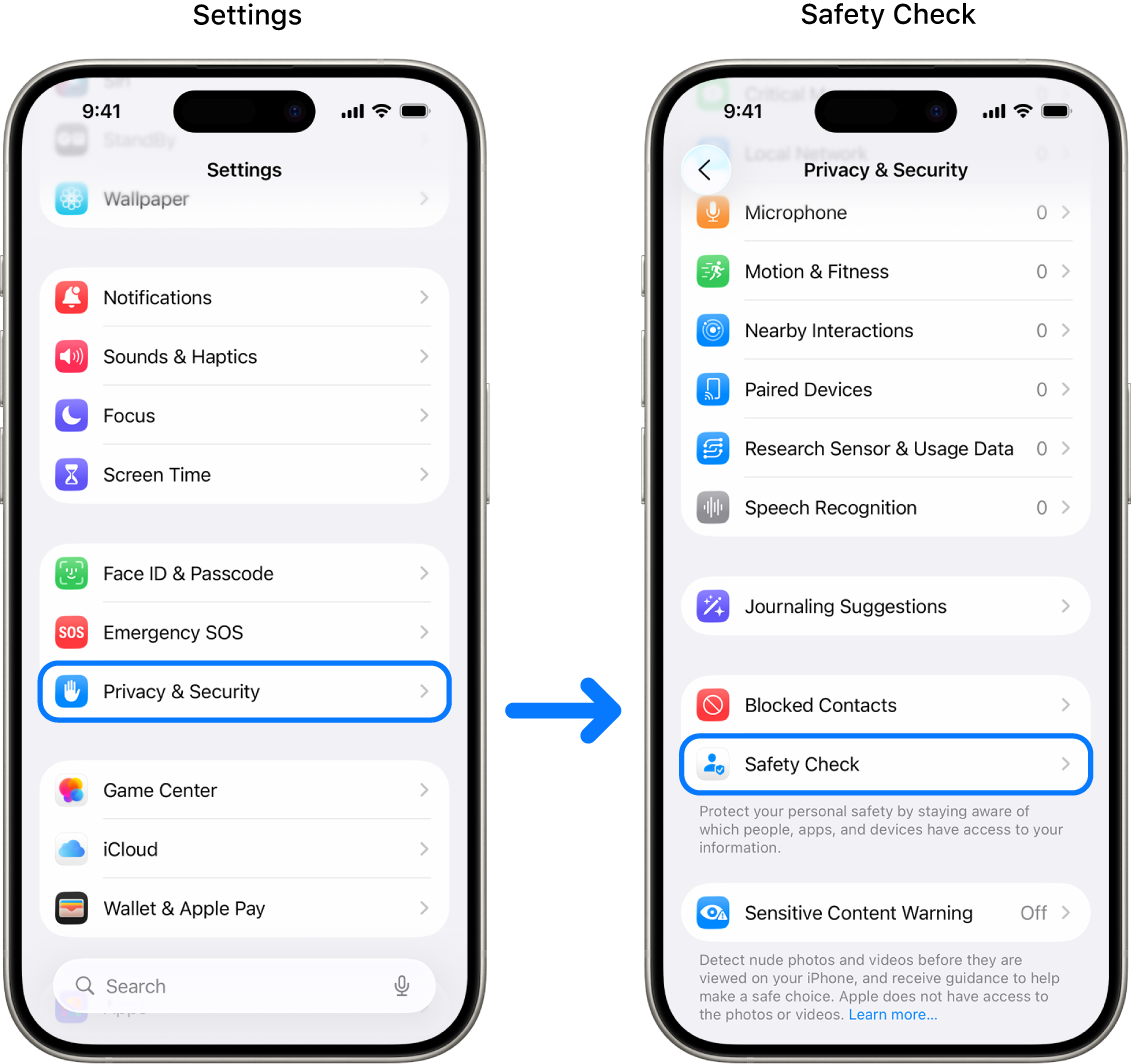
On your iPhone, configure Safety Checks under Settings > Privacy & Security > Safety Checks.
Then:
Open the Messages app.
Start a conversation with someone you trust.
Tap the + button next to the message field, and choose Check In.
The first time you use it, your iPhone will walk you through a few simple choices about what information you'd like to share if something goes wrong.
How to Use Safety Checks on an Android Phone
Android has a similar feature called Safety Check, which is part of Google's Personal Safety app. It works much like Apple's Check In: you tell your phone how long you'll be out, and if you don't respond when the timer expires, your emergency contacts are automatically notified and receive your location.
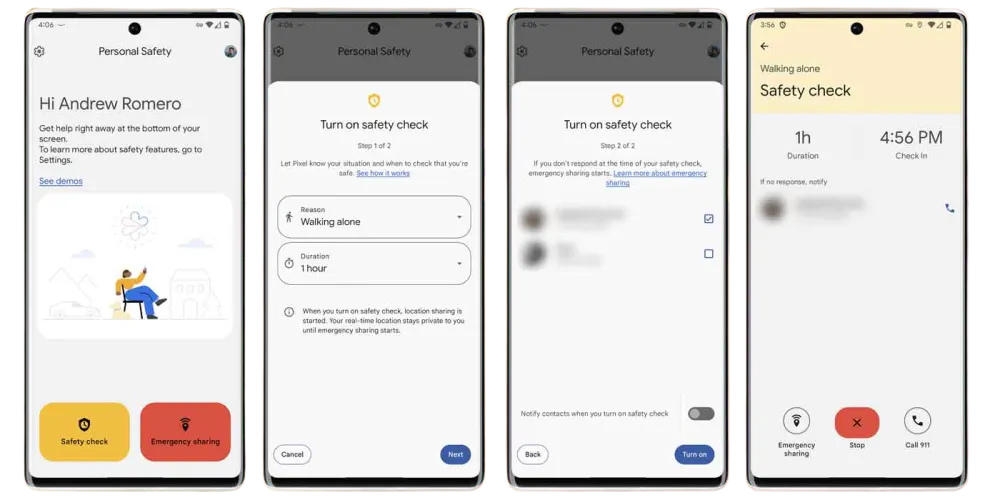
Google's implementation is actually a bit more flexible than Apple's because you can start a Safety Check for activities like walking home, hiking, meeting someone, or traveling, and you can even start one by saying, "Hey Google, start a Safety Check."
Unfortunately, not every Android phone supports this feature. Pixel phones generally have the full set of capabilities. Many other Android manufacturers include Google's Personal Safety app, but some replace it with their own emergency features or omit Safety Check entirely. Availability depends on the phone manufacturer, Android version, country, and carrier.
Finishing Touches
No technology can prevent every emergency, but it can make it easier for the people who care about you to know when something isn't right. For older adults living independently, college students, people traveling alone, or anyone meeting someone for the first time, Check Ins can offer little bit of reassurance that matters.
Take five minutes to try Check In with a family member or close friend. Like fastening your seat belt, it's one of those small habits you hope you'll never need, but you'll be glad it's there if you ever do.
R